
Kurzanleitung für Vorgesetzte
ss
☝ Ein Zeugnis wurde Ihnen zugewiesen? In diesem dreiminütigen Video begleiten wir Sie persönlich Schritt für Schritt durch die Bearbeitung in Skriba.
Einloggen
Gehen Sie auf
app.skriba.ch/ihr-unternehmen/loginund loggen Sie sich mit ihrer E-Mailadresse und ihrem Passwort ein.Falls Sie sich das erste Mal auf Skriba einloggen möchten und noch kein Passwort erhalten haben, können Sie auf
Passwort vergessenklicken. Sie erhalten anschliessend eine E-Mail mit weiteren Informationen, wie Sie ihr Passwort setzen können.
Zeugnisbearbeitung starten
Als Vorgesetzte*r erhalten Sie eine E-Mail sobald ein Zeugnis zur Bearbeitung bereit ist. Sie können ganz einfach auf den Link in der Mail klicken und landen so auf dem entsprechenden Zeugnis.
Sie sehen in Ihrem Skriba abgeschlossene Zeugnisse (Unterschrieben), bei welchen Sie involviert waren, sowie offene Zeugnisse, bei welchen Sie noch etwas erledigen müssen. Zeugnisse, welche von Ihnen noch bearbeitet werden müssen, sind als in Bearbeitung oder Bereit zur Unterschrift oder in Prüfung markiert. Wählen Sie ein entsprechendes Zeugnis an, um dieses zu bearbeiten.
Aufgaben ergänzen
Die HR-Mitarbeitenden bereitet das Zeugnis so weit wie möglich vor. Anschliessend ist es die Aufgabe der Vorgesetzten die Aufgaben der Mitarbeitenden zu kontrollieren/ergänzen.
Achtung, falls der/die Mitarbeitende verschiedene Funktionen hat/hatte, können bei jeder Funktion Aufgaben ausgewählt werden. Standardmässig ist die aktuelle Funktion aktiv.
Wählen Sie die Aufgaben aus, welche von dem/der Mitarbeitenden ausgeführt wurden, indem Sie sie anklicken.
Falls der/die Mitarbeiter/in eine weitere spezielle Aufgabe im Team ausgeführt hat, können Sie diese Aufgabe in der Spalte rechts ganz unten manuell erfassen:
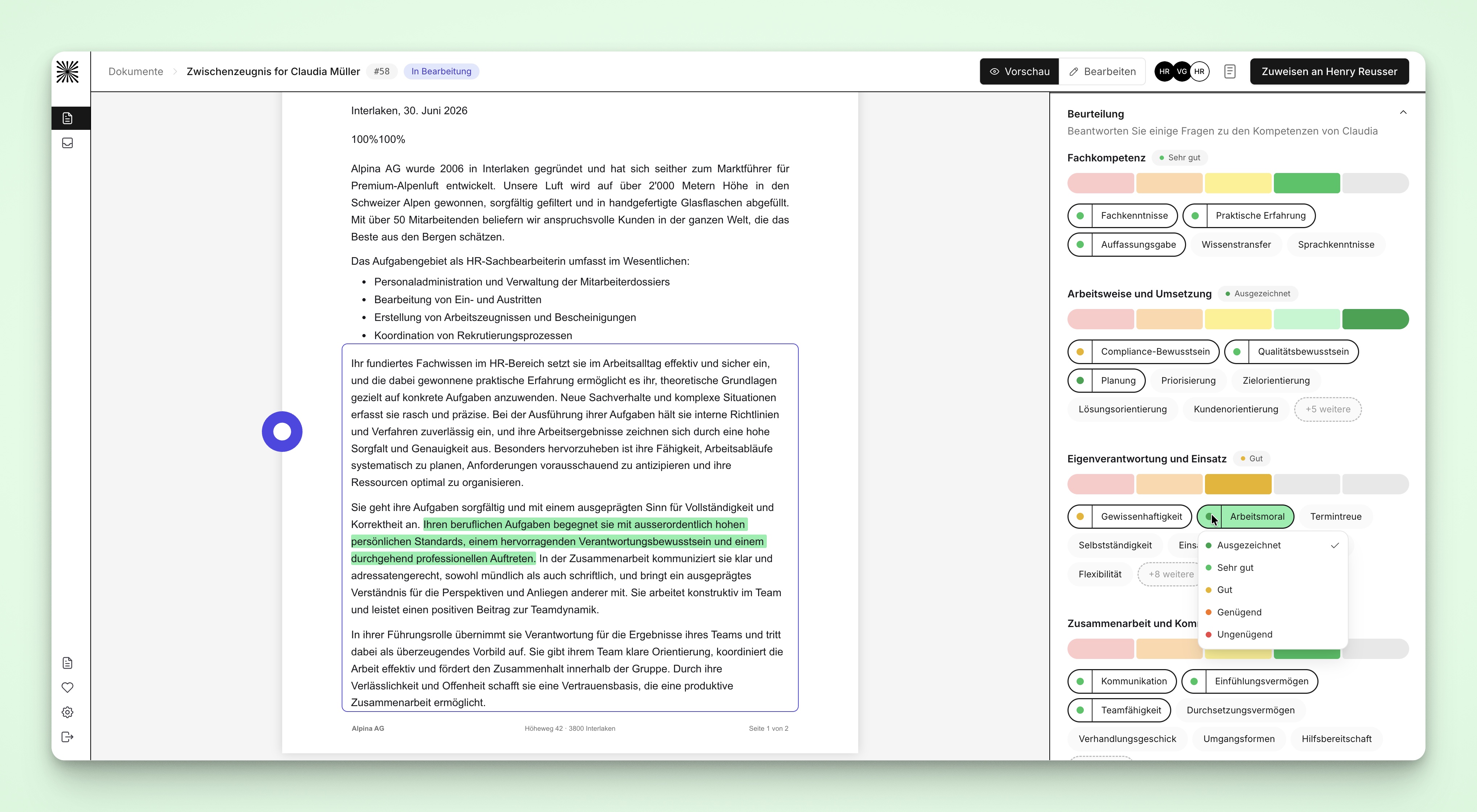
Beurteilung vornehmen
Die Beurteilung beinhaltet vier Kategorien, bei Mitarbeitenden mit einer Führungsfunktion sind es fünf.
Bewerten Sie zuerst die Kategorien des Mitarbeitenden von rot bis grün. Diese Bewertung beeinflusst die Formulierung der Evaluierung – je nachdem positiver oder zurückhaltender – und reflektiert ebenso die Menge der empfohlenen Kompetenzen.
Es sind bereits Kompetenzen in jedem Bereich angewählt, die jedoch an- und abgewählt werden können. Die Kompetenzen selber können individuell an eine Farbe angepasst werden, sowohl über die Auswahl rechts als auch über die Vorschau auf dem geschriebenen Satz selber.
Gehen Sie die Kategorien und Kompetenzen durch und wählen Sie die verschiedenen Beurteilungskriterien an, welche für den/die Mitarbeitende*n passen. Basierend auf dem Jobtitel des Zeugnisses gibt es hier schon eine vom HR getroffene Vorauswahl.
Klicken Sie auf Beurteilung generieren. In der Vorschau links sehen Sie nun den vorgeschlagenen Text. Kompetenzen können ab- oder angewählt werden. Um die Veränderungen im Text wiederzuspiegeln, muss auf
neu generierengeklickt werden.
Zeugnisabschluss
Sobald die Beurteilung abgeschlossen ist, können Sie am Schluss noch einen Ausstellungsgrund sowie Zukunftswünsche anwählen.
Wenn Sie die Bearbeitung am Zeugnis fertiggestellt haben, können Sie das Zeugnis mit dem Button
Zuweisen anan die nächste Person im Workflow schicken.Falls Sie Änderungswünsche am bestehenden Text haben oder sie dem HR-Verantwortlichen eine Bemerkung mitteilen möchten, können Sie dafür das Kommentarfeld nutzen.
Freitextbearbeitung
In Skriba können generierte Texte manuell bearbeitet und angepasst werden. Sofern die zuständige HR-Fachperson diese Berechtigung beim Zuweisen aktiviert, können Vorgesetzte Aufgaben, Beurteilungen und den Schlussteil direkt selbst bearbeiten.
Ist die Bearbeitungsfunktion nicht freigeschaltet, können gewünschte Anpassungen weiterhin im Kommentarfeld erfasst werden. Diese werden anschliessend von der zuständigen HR-Fachperson im Zeugnis umgesetzt.
FAQs
Warum sind bei einer Funktion keine Aufgaben ersichtlich?
Falls bei einer Funktion keine Aufgaben ersichtlich sind, wurden noch keine Aufgaben zu dieser Funktion erfasst. Nehmen Sie bitte mit der entsprechenden HR-Verantwortlichen Kontakt auf um das weitere Vorgehen zu besprechen. Es könnte auch sein, dass die Aufgaben nur bei einer Sprache hinterlegt sind, das Zeugnis aber in einer anderen Sprache verfasst wird.